


How to Navigate the Resources Page
The Resources page is where your program shares useful content with the community — guides, articles, links, documents, and videos relevant to your role and the startups you support. What you can see depends on the visibility settings configured by your program administrator.
Access to specific resources may be restricted by user role, program, tag, or industry. If you cannot find a resource you expected to see, contact your program administrator.
Where to Find Resources
Click Resources in the top navigation menu. This opens the Resources page, which shows the available Spaces — the broader folders that group your program's content.
Step-by-Step
1. Open a Space
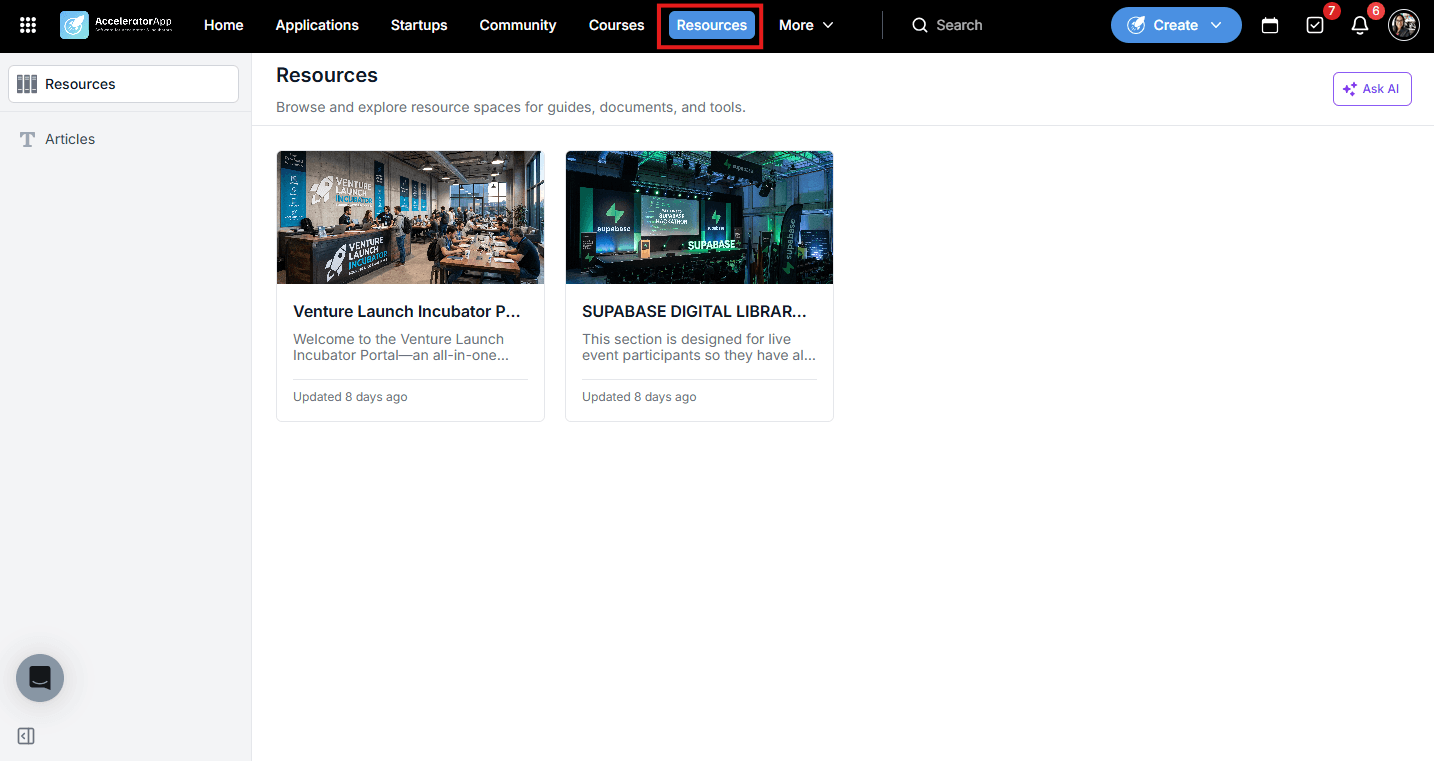
On the Resources page, each card is a Space. Click on the Space you want to explore.
2. Select a Subfolder
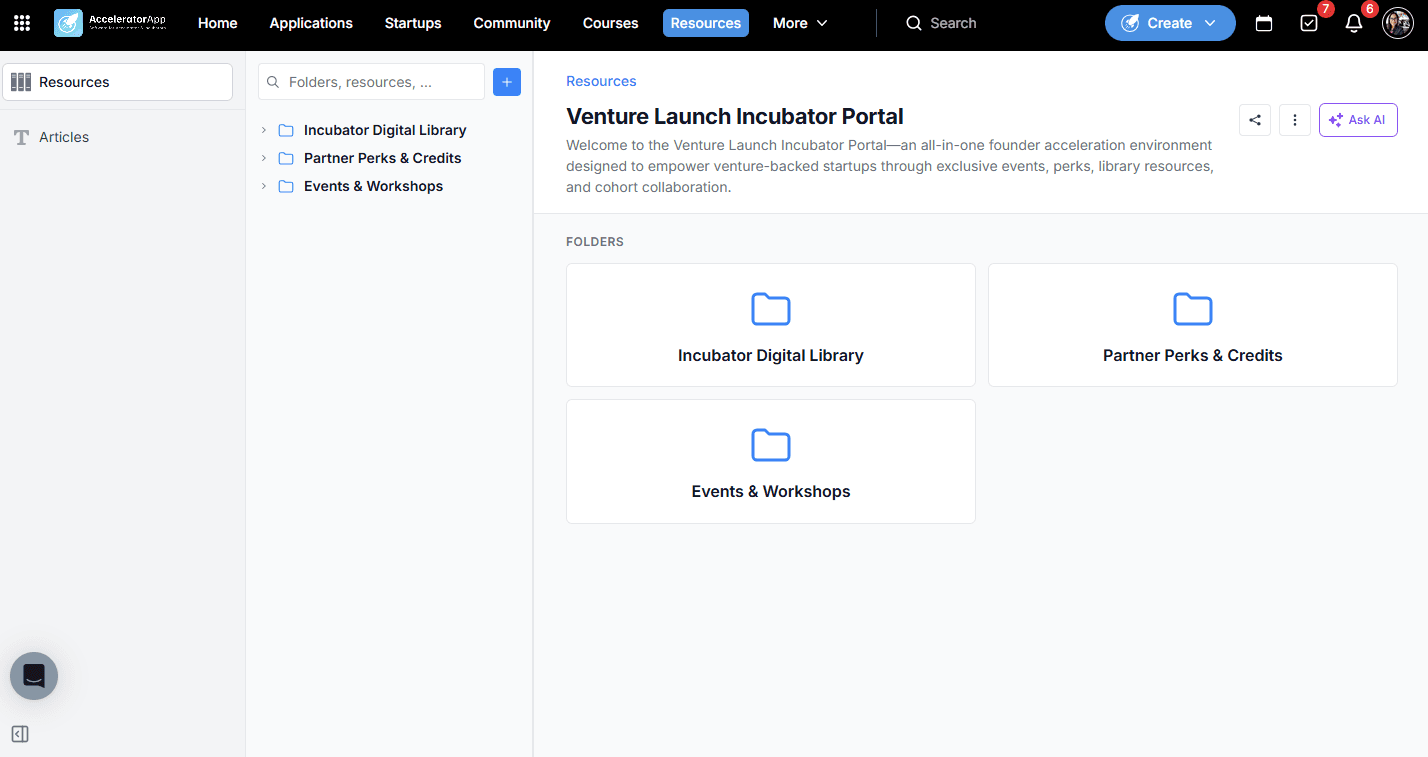
Inside a Space, you will see its subfolders. There are two ways to open one:
- From the folder tree on the left — expand the Space and click the subfolder you want.
- From the main area on the right — click the folder card.
3. Open a Resource
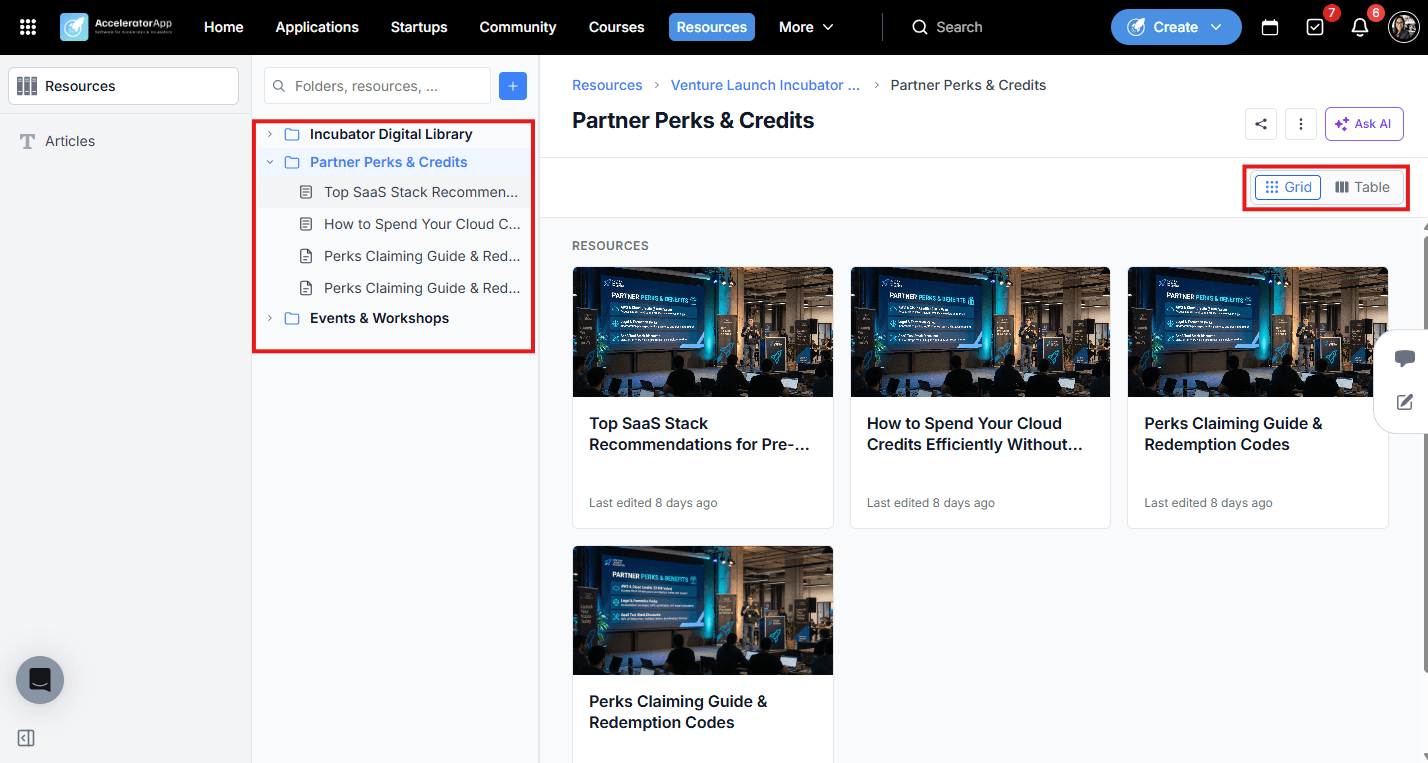
Inside a subfolder, you will see the files and articles it contains. Switch between Grid and Table view using the toggle at the top right of the page. Click on any item to open it. Depending on the type, it will:
- Open an article directly within AcceleratorApp.
- Redirect you to an external link.
- Allow you to download a file (if download access has been enabled by your admin).
4. Search for a Resource
Use the search bar at the top of the folder tree on the left to find folders or resources by name, without browsing through each folder.
Best Practices
- Check Resources before your first coaching session. Your program may have shared onboarding guides, playbooks, or toolkits that are directly relevant to how you should work with startups.
- Return to Resources regularly. New content may be added as the program evolves — checking back periodically ensures you do not miss useful updates.
- Share relevant resources with your startups. If you find a guide or article that would help a startup you are mentoring, reference it during your coaching session or share the link directly.